.png?width=800&height=160&name=Untitled%20(4).png)
You can keep a breadcrumb track of your ride in the TrailIntel mobile app, capturing every corner and hill of the journey as you go.
Watch this video for an overview of the process, or follow the written directions below.
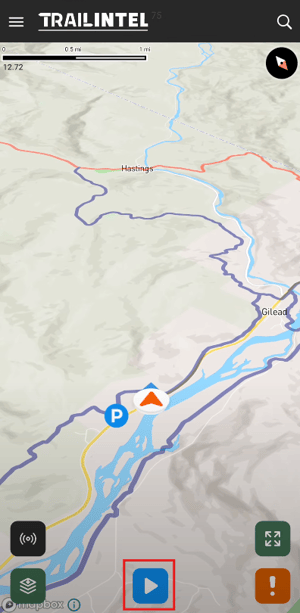
First, make sure you're signed into your account so you can save your data at the end of the trip. Once you start your ride, press the blue play button at the bottom of the screen to start recording.
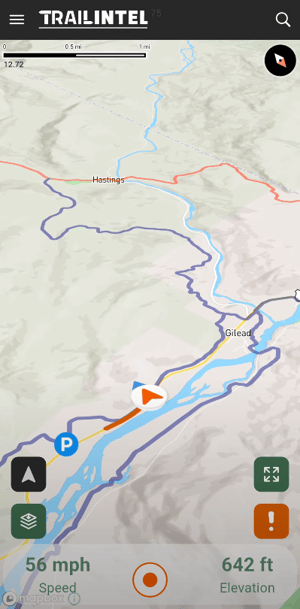
Now, you can enjoy your ride! Your track will show as an orange line behind you following your travel path. You can see your speed and elevation listed at the bottom of the screen.
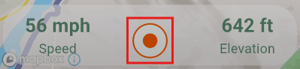
When you are done riding, click the orange circle at the bottom of the screen.
This will bring up a menu of options for your track. Here you will enter the title, the trail condition, the visibility, and an optional note. The start and end time will be listed as well as the total distance. You have the option to discard the track - "Don't Save", or keep the track "Save Route".
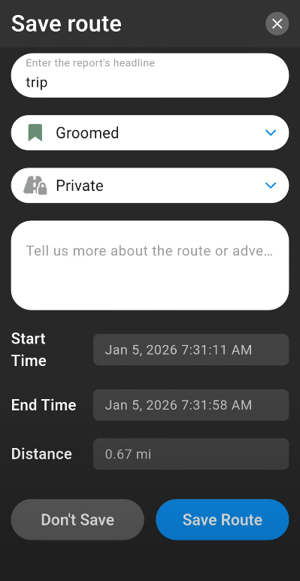
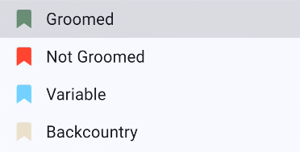
The trail condition options are Groomed, Not Groomed, Variable, and Backcountry
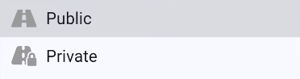
The visibility options are Public - saved to your public TrailIntel profile, or Private - keep that hidden gem to yourself!
This banner will appear across the screen when your track is saved. Safe travels!
