.png?width=800&height=160&name=Untitled%20(4).png)
Creating a route in the TrailIntel mobile app is easy! You can use routes for turn-by-turn navigation, saving for later use, or sending to your Garmin GPS.
First, locate your starting point on the map. You can do this either via search, or by clicking a point on the map. Here, I clicked on a parking spot I could see along the trails.
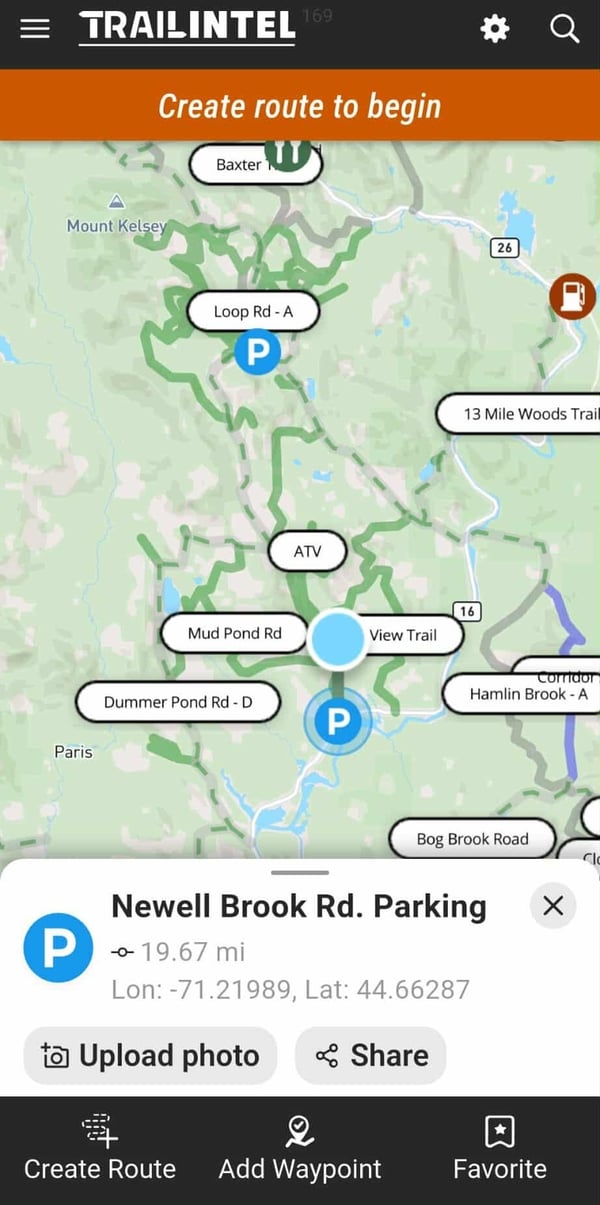
Click "Create Route" in the bottom left corner to begin. Then select "From This Place". If you'd rather this be your destination, you can select "To This Place" to run this process the opposite way.
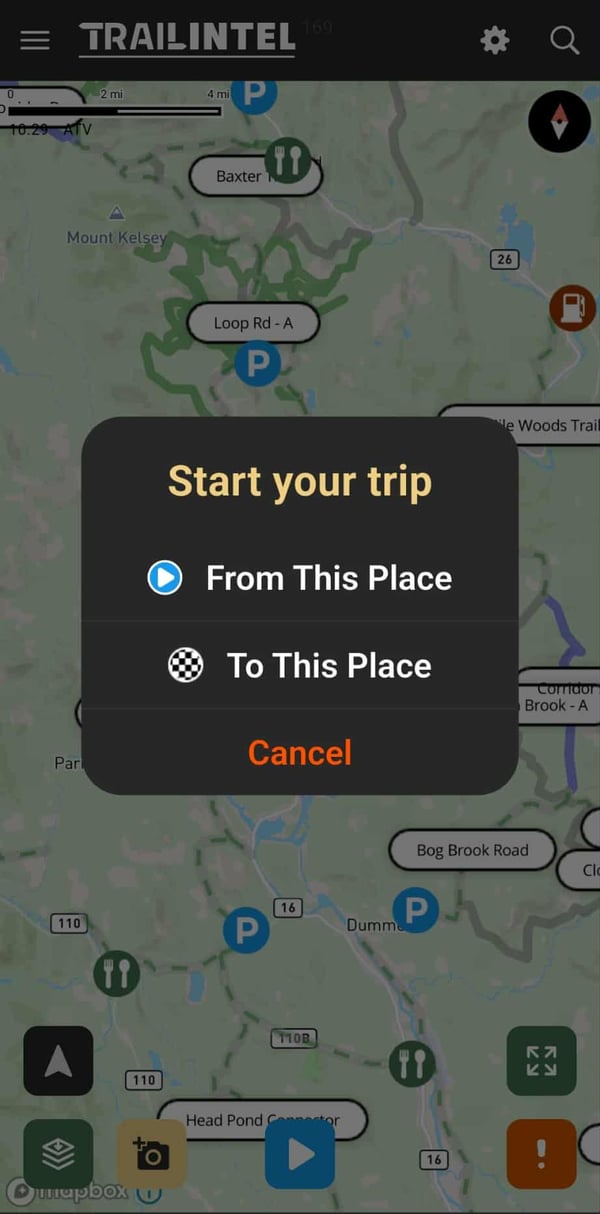
This will open up a menu for you to select your destination (or starting point, if you already chose your destination).
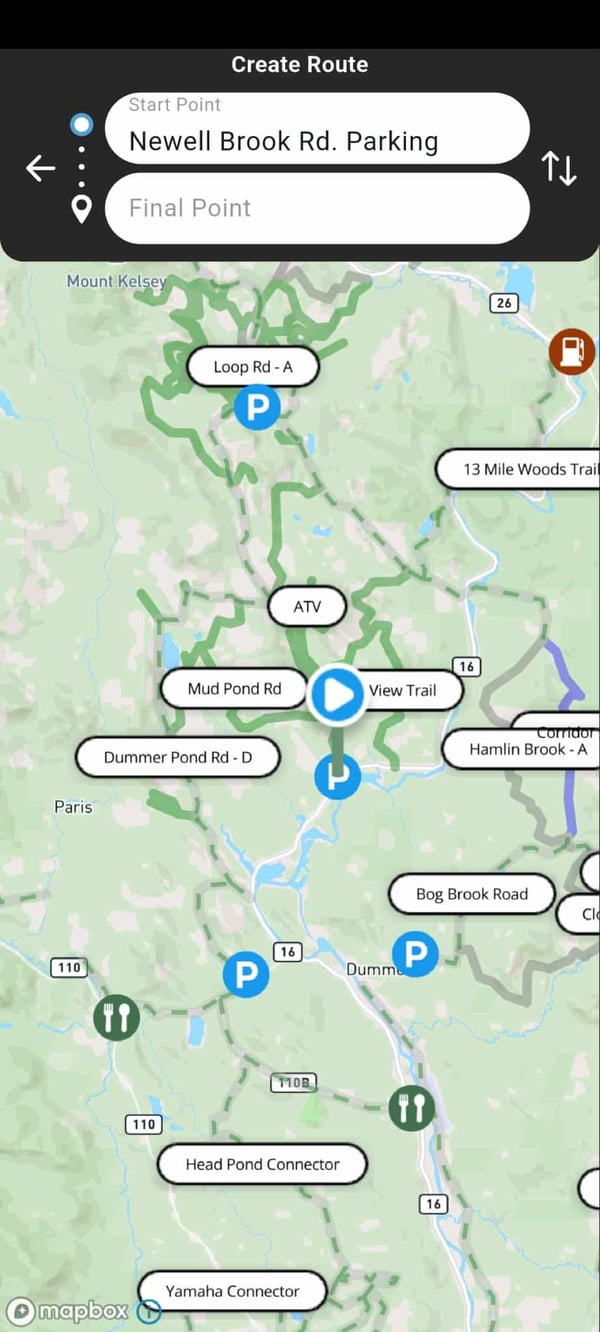
You can either browse the map and click on a waypoint (or any point along a trail) to find your destination:
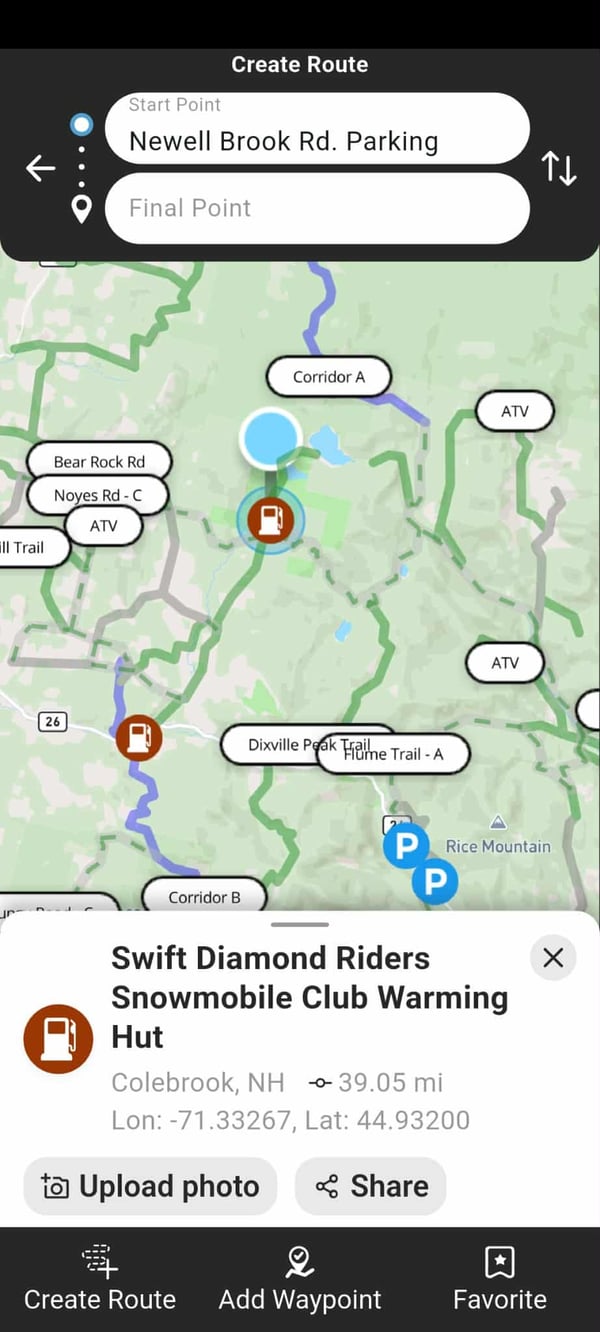
Or type a query into the search bar:
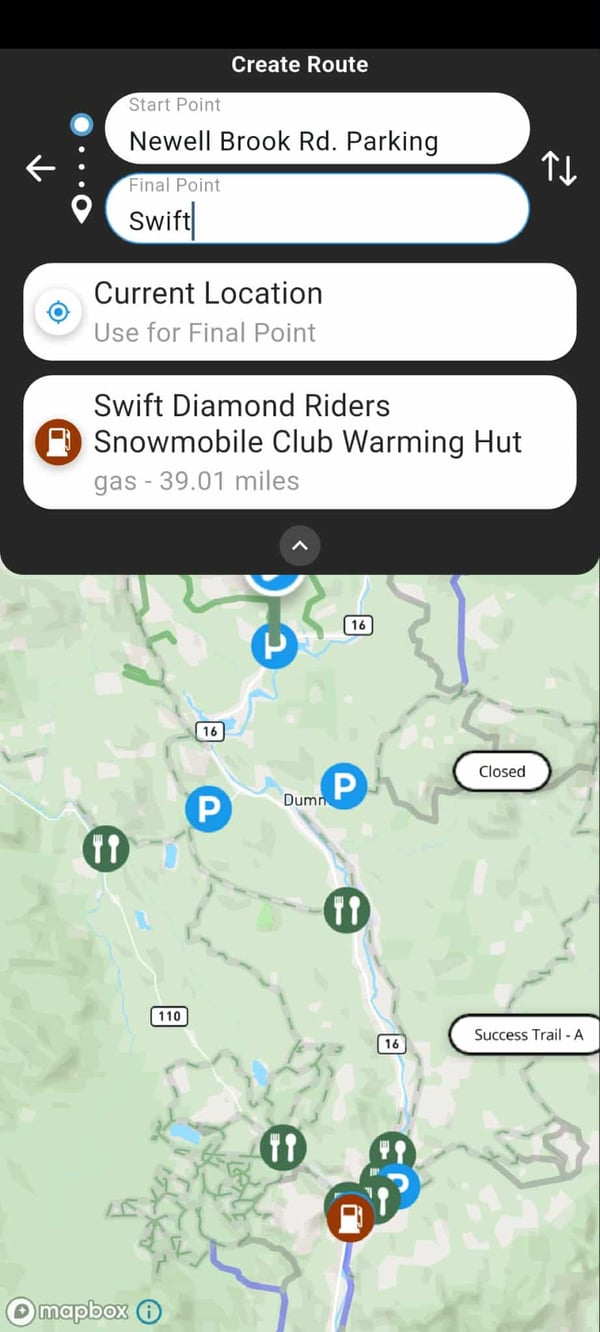
When you click a waypoint from the search results, your route will be auto-calculated.
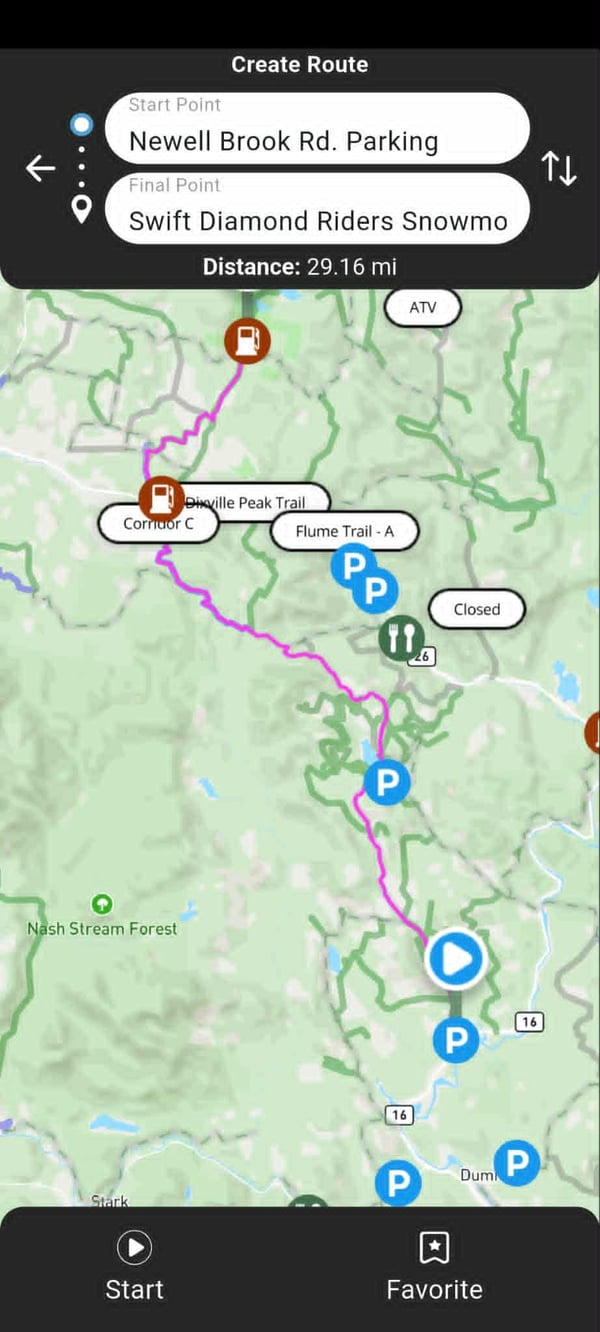
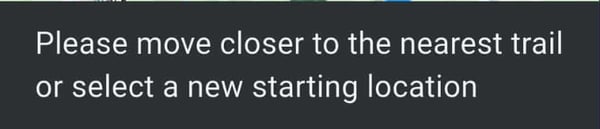
Click "Start" to launch the route right away. If you are not at the starting destination, you will not be able to launch the route - you will get the error message below telling you to "Move closer to the nearest trail or select a new starting location".
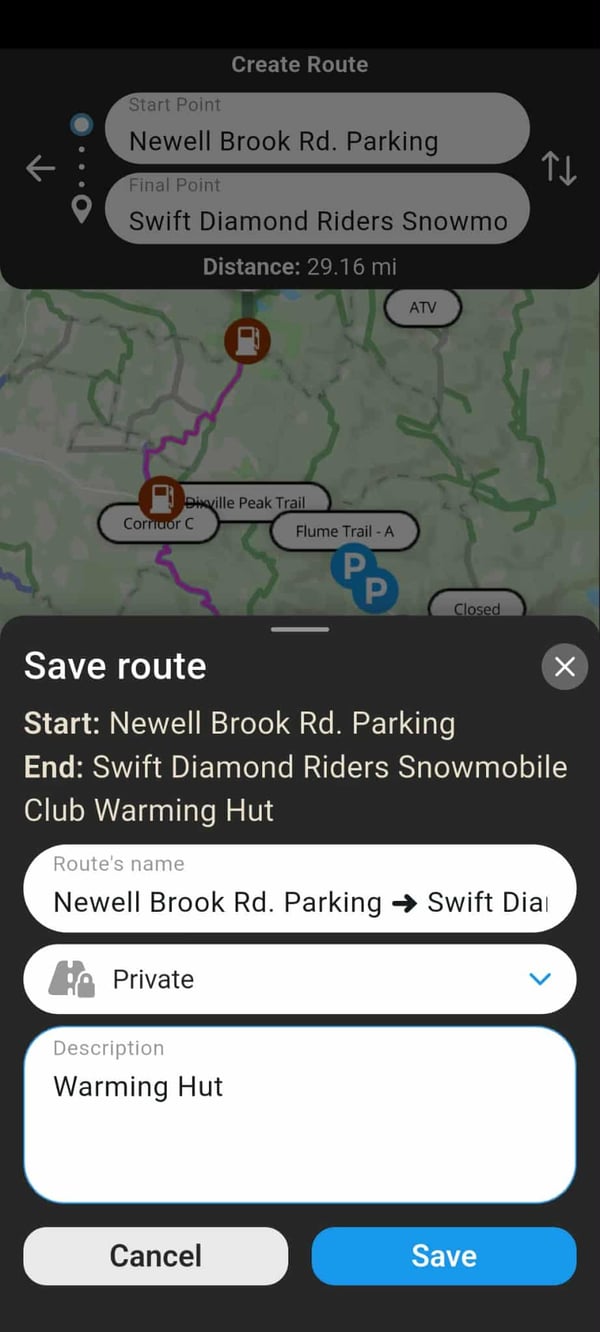
Click "Favorite" on the bottom right to save this route to your TrailIntel account,. Enter a name, choose private or public visibility, then click "Save"
You will get a message confirming it saved to your Favorites on the bottom of your screen. You can click the back arrow in the top left to get out of this screen and return to the map view.
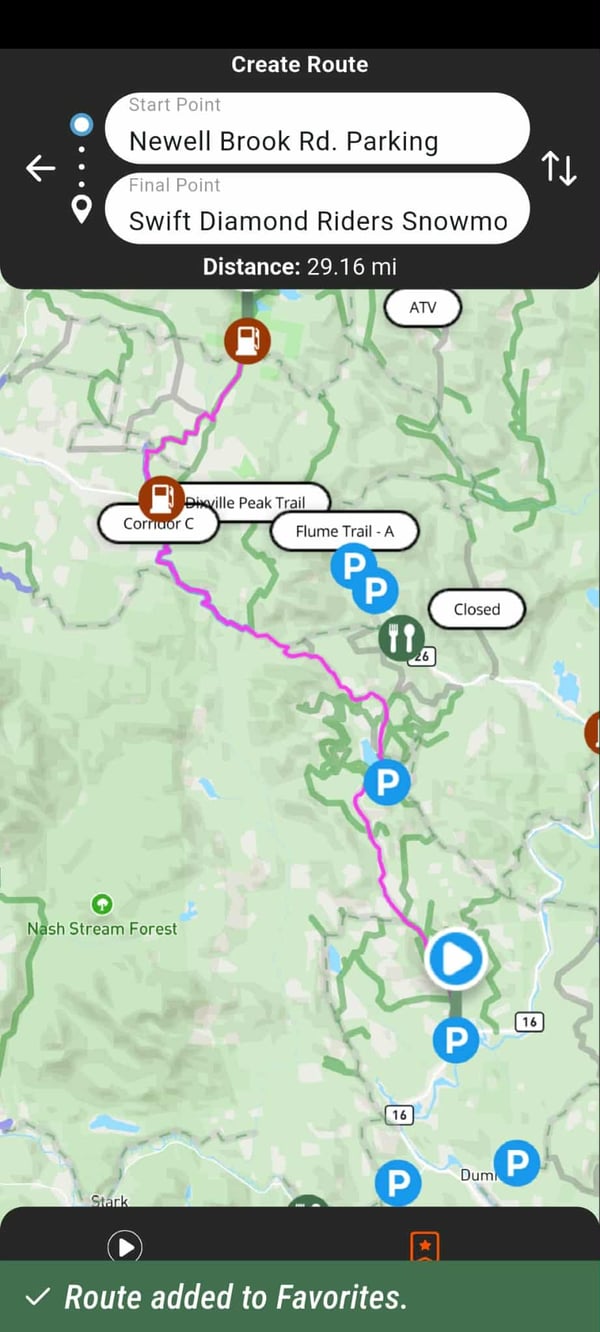
To locate this route now that it is saved, click the magnifying glass in the top right corner.

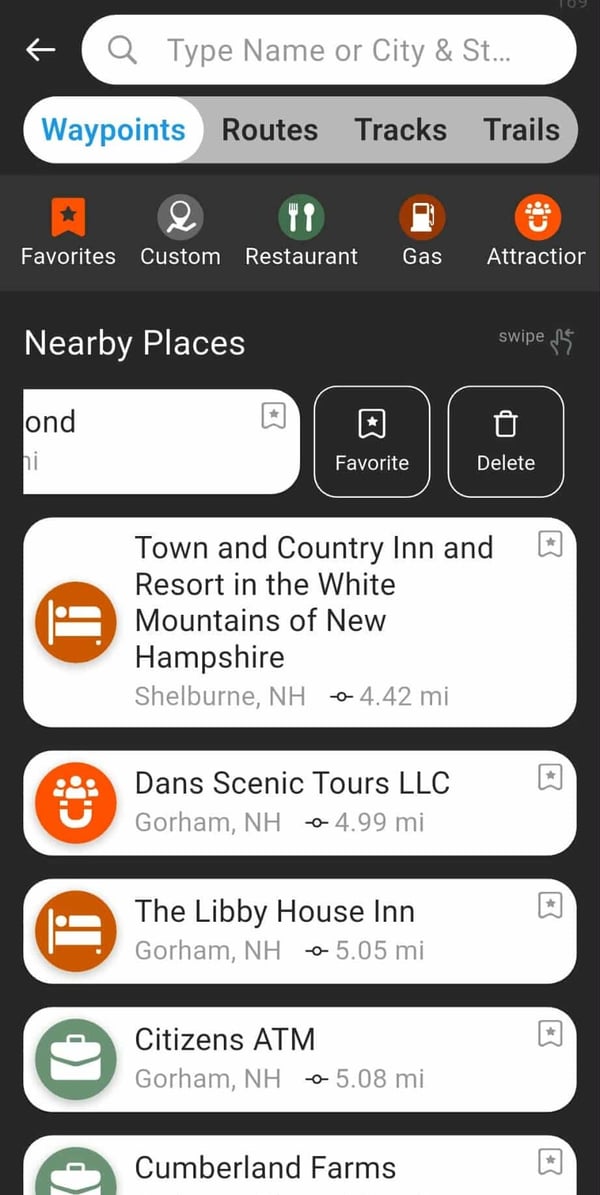
This will open your Search menu, featuring Waypoints, Routes, Tracks, and Trails. In this menu, you can swipe any item to the left to add or remove Waypoints, Routes, or Tracks from your favorites, or delete Custom Waypoints you may have created.
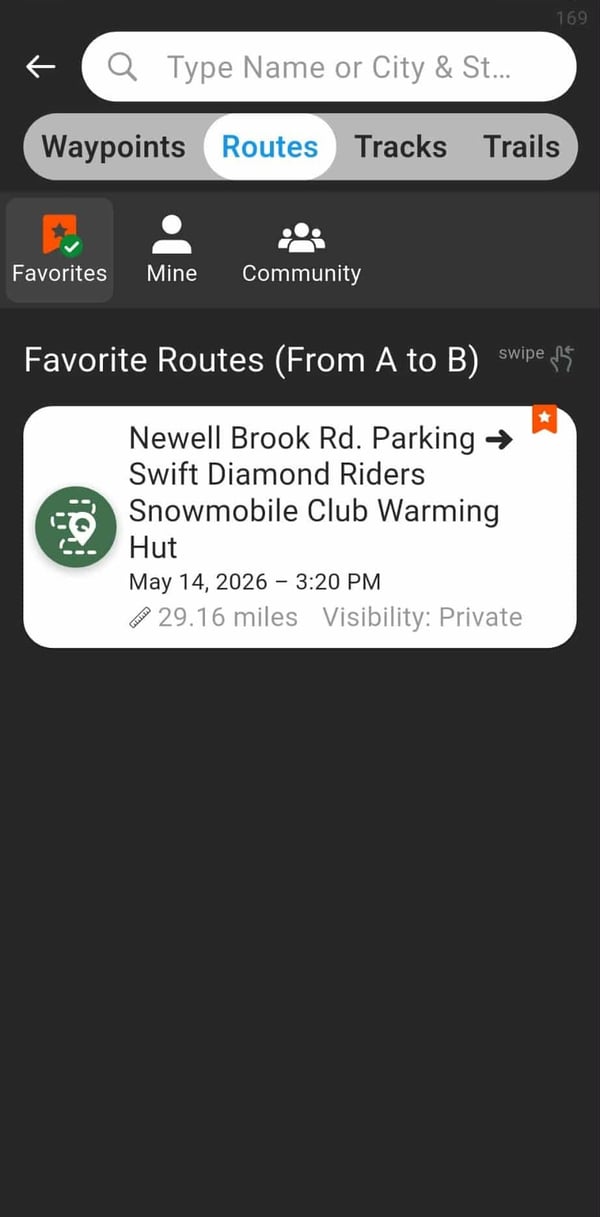
Click the Routes tab at the top, and you will see the route you just created.
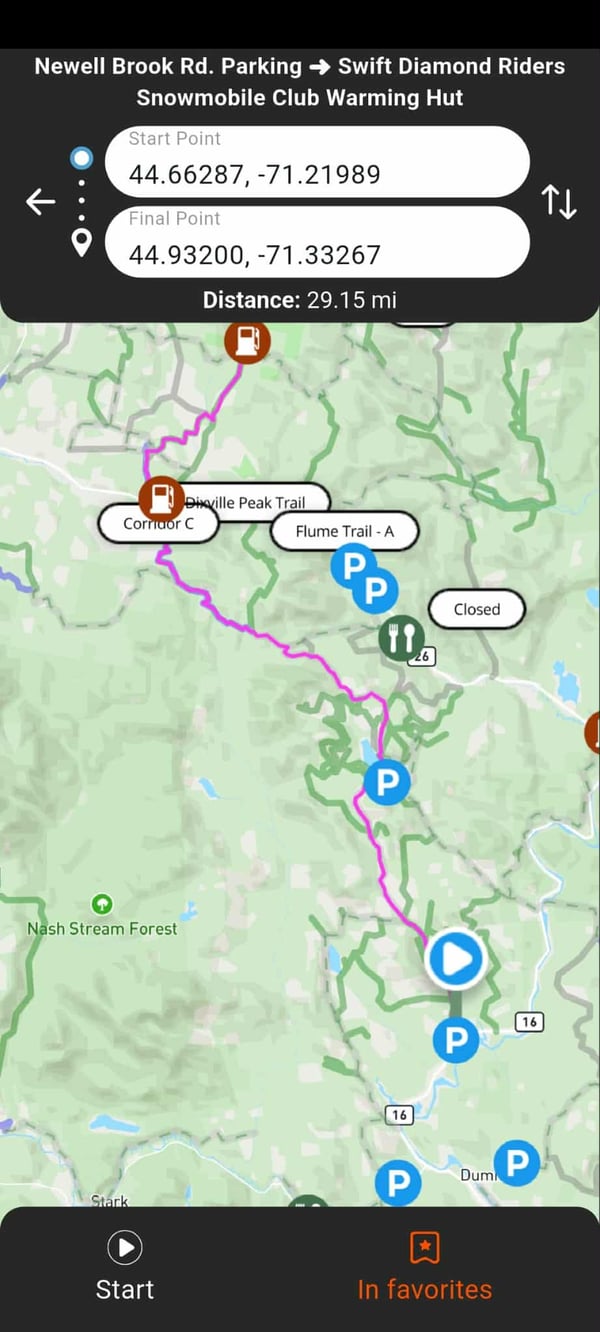
Clicking the route from this menu will reopen it to give you the option to launch or remove from your favorites. In this view, you will also see the GPS coordinates of your start and end locations.
To transfer these saved routes to your Garmin GPS, follow the directions on this page.
Multi-point routing is currently live in the web app and the update will be available on mobile soon! Keep an eye out for version 179 in your app store.