.png?width=800&height=160&name=Untitled%20(4).png)
Find the place along the trail that you want to save, and tap on the trail in that location.
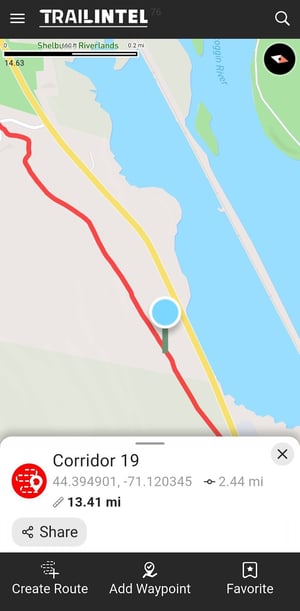
This will produce a menu of options at the bottom of the screen:
-
Share - A link to this exact point to share with your friends
-
Create Route - One way to find a destination to navigate to while on the trails (rather than searching or browsing POI categories), or a way to plan a route for later
- Add Waypoint - Save the location to your profile as a waypoint
- Favorite - Add the trail the point is on to your favorites for future reference
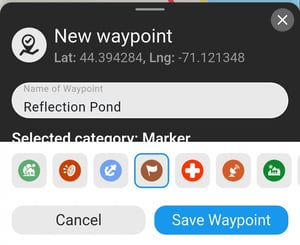
When you click Add Waypoint, you will be able to enter the title of the waypoint and select a category and matching icon for it.
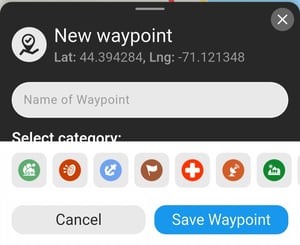
The categories are as follows, in the order shown below: Home, Wildlife, Marine, Marker, Medical, Poi (Point of interest), Recent, Sign, and Transportation

Once you enter the name and select the category, click Save Waypoint.
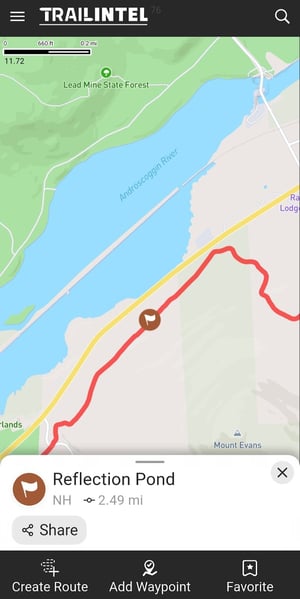
Now you will see your new custom waypoint on the map!
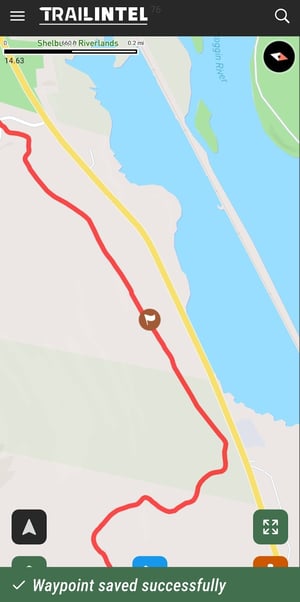
You can also view and search through your custom waypoints by clicking the magnifying glass/search icon in the top right corner of the screen.

From here, you can filter by Custom and see all of your custom waypoints listed.
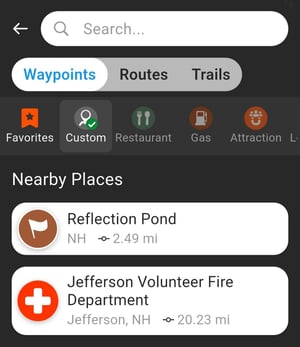
Selecting your waypoint from this list will bring up the point on the map, as well as the same menu of options you had before you saved it as a point.