.png?width=800&height=160&name=Untitled%20(4).png)
Map Display Features
Map Type, Trail Opacity, Waypoint Filters
There are map customization options built right into your TrailIntel app, accessible through the Map Preferences menu in the bottom left corner of the screen.
Background Map Type
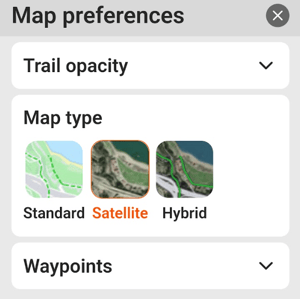
You can select between three background map options.
- Standard - street detail, bodies of water, and 3D terrain
- Satellite - satellite imagery
- Hybrid - a combination of both satellite imagery and overlaid street info
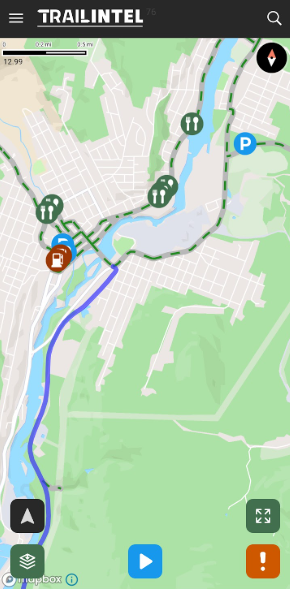
Example of the Standard map:
Example of the Satellite map:

Example of the Hybrid map:
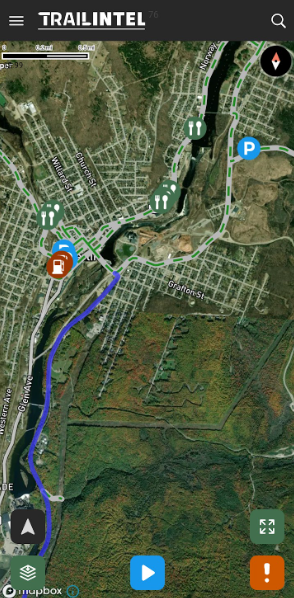
Trail Opacity
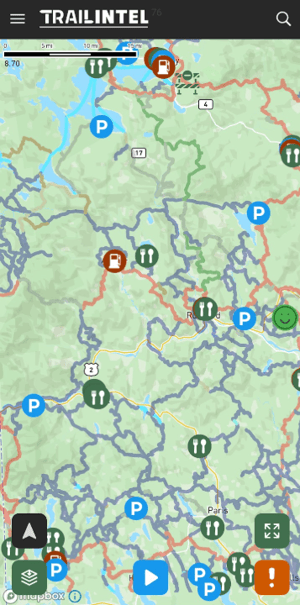
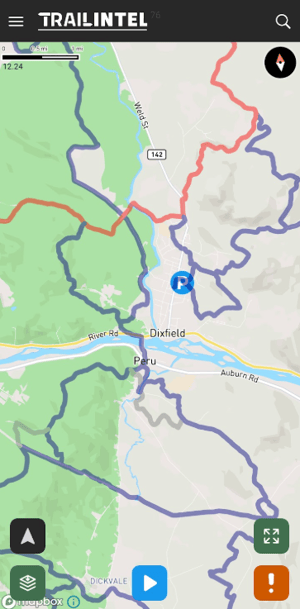
We have integrated a trail opacity slider to make it easier to view your entire map and background info when you’re zoomed out to see a large area.
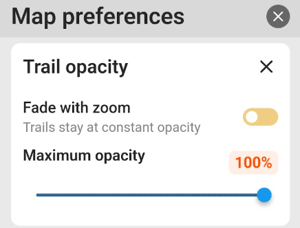
When the “Fade with zoom” slider is off (yellow) the maps will stay the same opacity when you zoom in and out. You can adjust the opacity level with the slider.
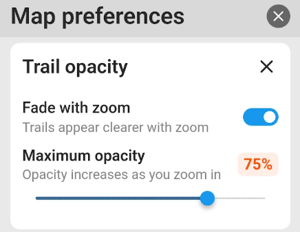
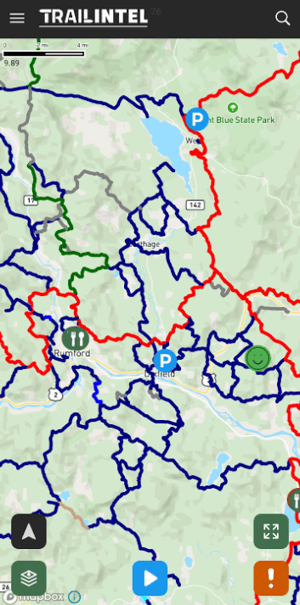
When the “Fade with zoom” slider is on (blue) the maps will be more transparent the further you zoom out, and more opaque the closer you zoom in. The slider indicates how opaque the trails are when you zoom in very close.
Map Scale
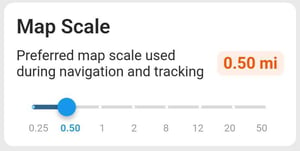
When you set your map to auto-follow (toggle this on/off by clicking the gray triangle in the bottom left corner of the map), use this slider to determine the zoom level of the map as you travel
Explore Layers
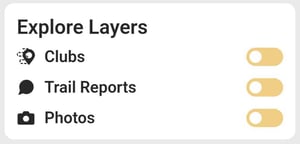
These additional layers show you information about local clubs, trail reports made by clubs and other users, and photos submitted by clubs and other users. This data syncs when you are online.
Waypoints on Map
Under Waypoints in the Map Preferences menu, you can select which categories of waypoints you would like to display on the map, from none to all and everything between. The green check indicates that category is currently displaying on the map.

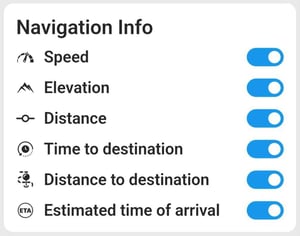
Navigation Info
This menu allows you to toggle the following information visible on your screen as you navigate: your current speed, elevation, distance, time to destination, distance to destination, and estimated time of arrival.
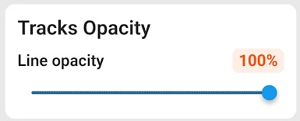
 Tracks Opacity
This modifies the opacity of your recorded "breadcrumb" tracks in the app.