.png?width=800&height=160&name=Untitled%20(4).png)
Quick Links - Windows Installation Video
How to download the TrailIntel Map Installer to your computer
First, log into your TrailIntel account on your computer.

From the side menu, click "Load Garmin". Then click "Connect Device" on the next page.
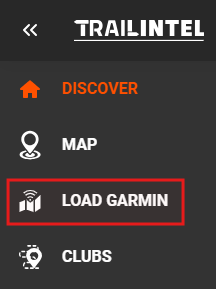
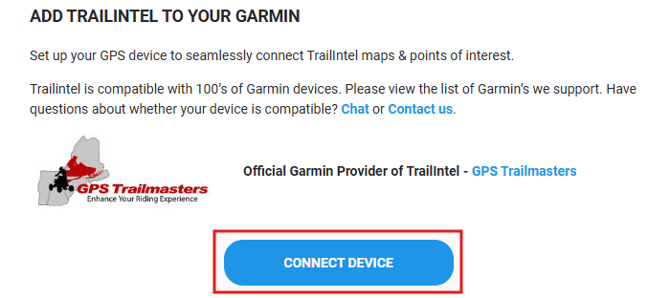
Click "Download", then select your computer type and desired map set. This will begin the download of our map installer to your computer.
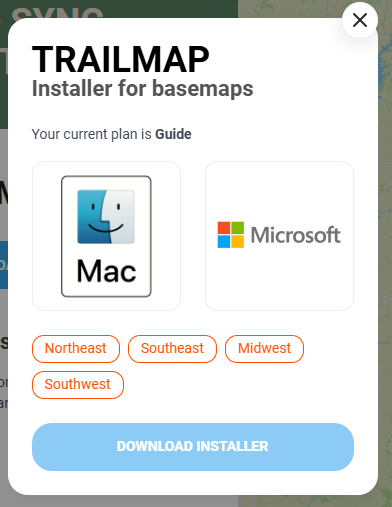
To determine which installer to download to your Mac computer, follow the directions here: https://support.trailintel.com/which-mac-installer
Follow along with the demo video below, or continue to follow along with the written directions.
Once the installer saves to your downloads, locate and open the file. This will likely be in your Downloads list in the upper right corner of the web browser, or it can be found in your computer's Downloads folder in a file browser window.
Before you open the map installer, you should connect your Garmin to the computer.
The program will prompt you to log in when it opens. Click the Login button to open a web browser and sign into your account. If you are already signed into your account in the web, it will just take a moment to sync that login to the installer program.
Once you've signed in, you may need to minimize the web browser tab to see the installer - sometimes the installer window can appear behind the web browser. Here you will select the region and map type you'd like to install, then click "Start".
You have the option to install the trail map with or without our background map attached. If you're not sure which route to go, follow this guide: https://support.trailintel.com/when-to-install-background-map-garmin
Please note that the map files are quite large, and installation can take 5-15 minutes. Once complete, you will get a message indicating the file has successfully transferred. If you disconnect before the installation is complete, your map file will not transfer.
After you complete installation, there are just a few settings to change on your Garmin to optimize your trail experience. Check out this article for more info: Garmin Setup
When it is time to update the trail map on your Garmin, simply reopen the same installation program from your computer. If there is a new version of the program available (new features, added device support, bug fixes, etc.) the program will prompt you to download it from our site with a pop-up message. Every time you send maps to your device, the program automatically sends the current map version to your device. On some models, you can compare the maps for installation and the program will list which maps need to be updated and which are current.