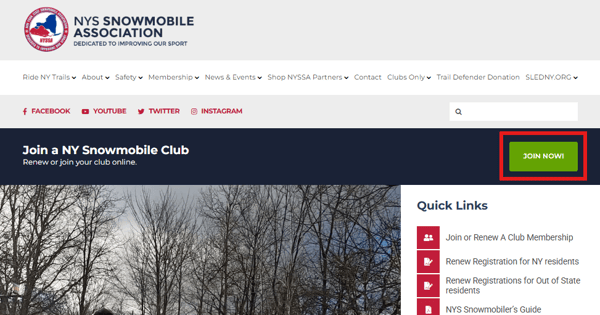
You can get to TrailIntel right from the NYSSA website. From the home page, click "Join Now".
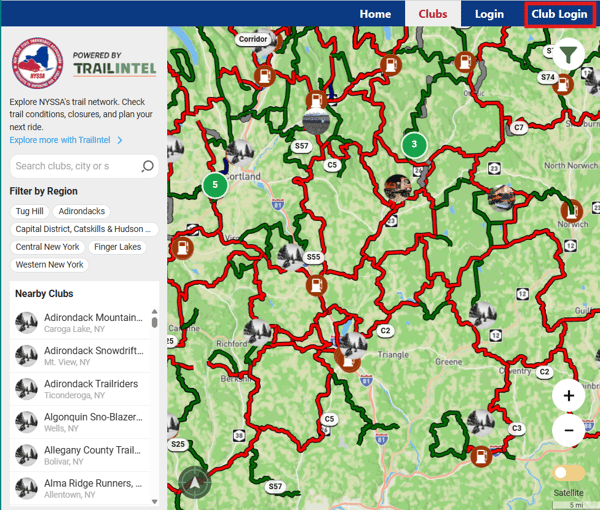
You will then be brought to the club search page; this is where riders will find your club to join. Click Club Login at the top.
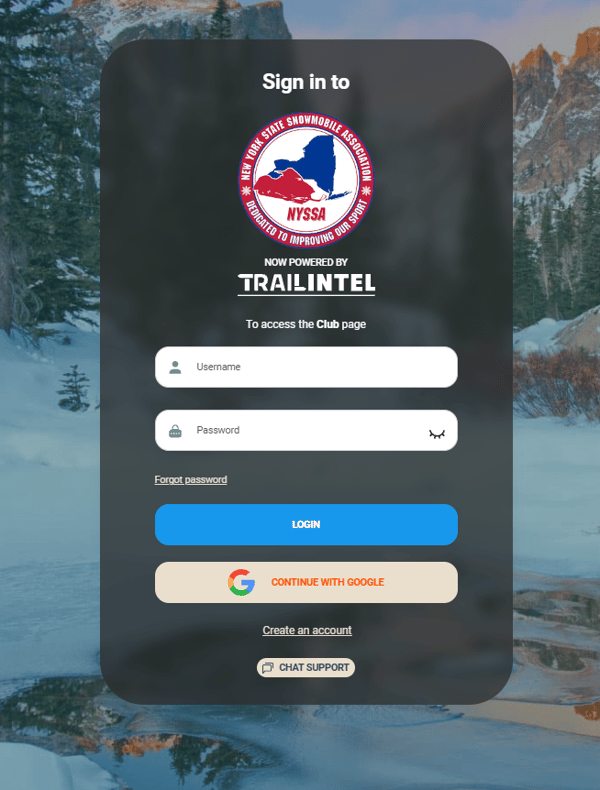
Enter your email address and password to continue. If you haven't signed in yet, click "forgot password" and enter your email to receive a link to reset your password (for NYSSA club officers).
You can also access your club through the TrailIntel web app. Sign into your account, then click the icon in the top right corner.
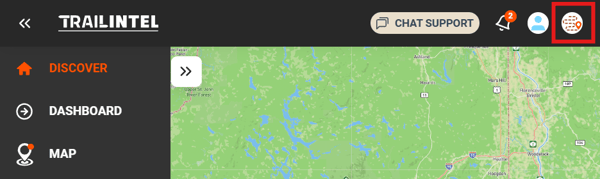
This will take you to your club settings. You can also access by going directly to app.trailintel.com/club/settings
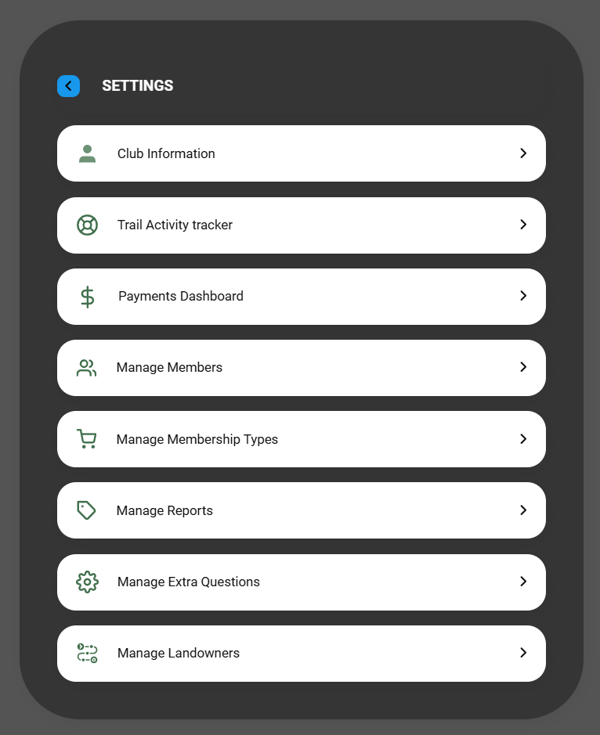
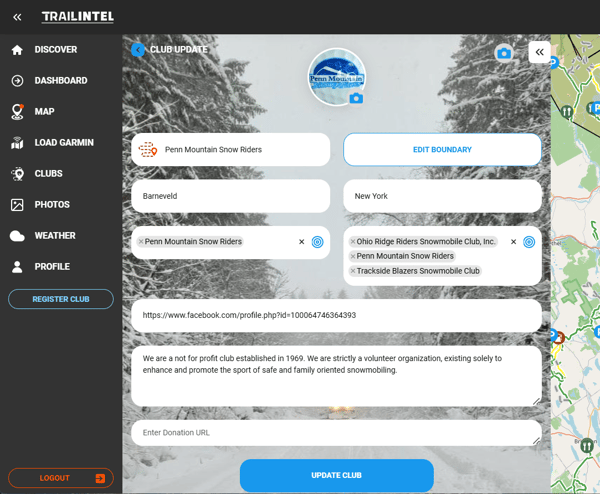
Club Information (app.trailintel.com/club)
This allows you to edit your club's information on Trailintel, including:
- Club profile and cover photos
- Click the photo icon in the corner of the circular icon to add the club profile photo. This will be the icon that appears on the TrailIntel map as well
- Click the photo icon in the top right corner to add the cover photo
- Club Name
- Club boundary - the physical bounds of your trails on the map. This is where your icon will show on the TrailIntel map. We have imported this data directly from NYSSA, but you can make adjustments.
- City/Town
- State
- Points of interest that are associated with your club
- Other clubs that are associated with your club
- Club Facebook URL
- Club description - this field cannot be blank
Payments Dashboard
This launches the portal to Stripe Connect, the platform you use to collect membership and donation payments. TrailIntel does not collect or hold these funds - they go directly to your club's account.
We will be sending Stripe setup links out to all clubs who have not yet completed this; please contact us if you need assistance.
Manage Members (app.trailintel.com/club/members)
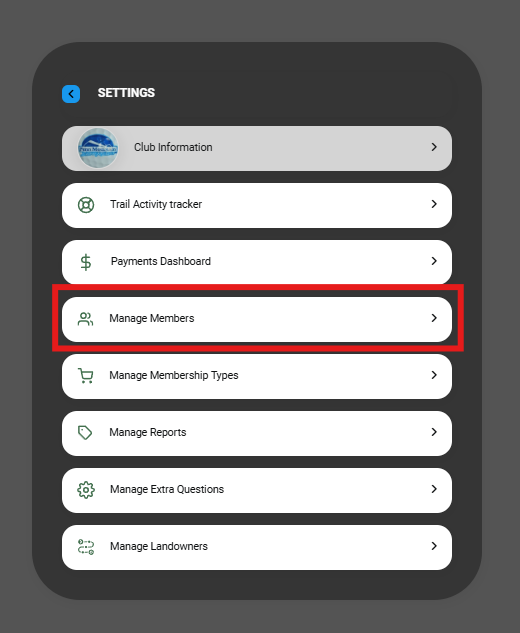
Here, you can view members who have joined your club through TrailIntel. Their Voucher ID will display directly beneath their name. (details redacted for privacy)
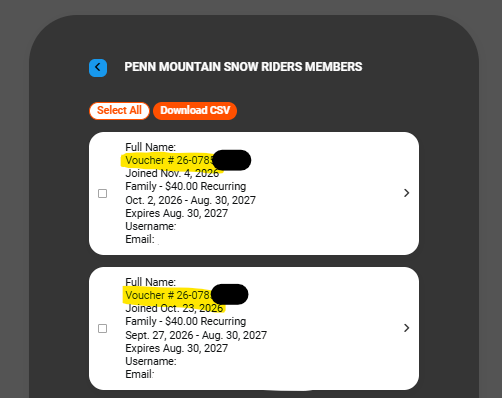
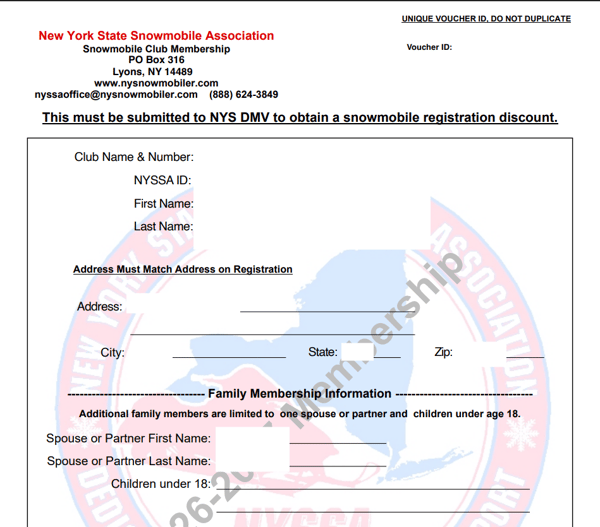
If you click the Voucher ID, it will open the PDF for you to save, share, or print. (details redacted for privacy)
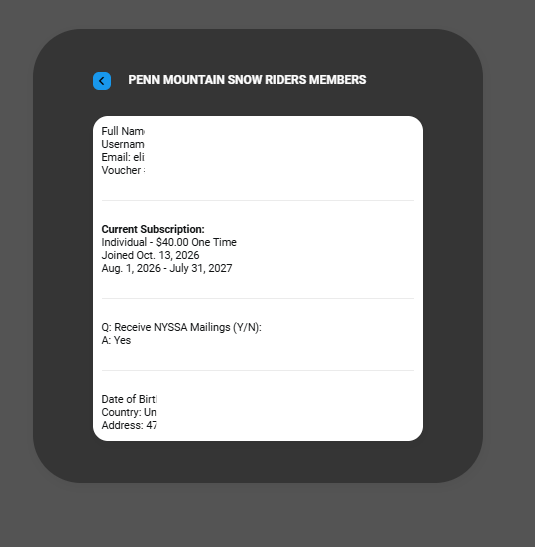
Click the arrow to the right to view more information about each user, including their answers to extra questions. (details redacted for privacy)
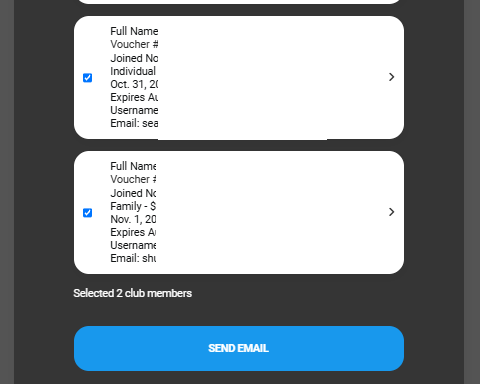
Click the check box to the left, then select multiple or all members; you can then click "Send an Email" to message them all at once. (details redacted for privacy)
If someone joined your club in-person, with a check, or some other way, you can add them into your TrailIntel account and generate a voucher for them by clicking "Add Offline Members" from the bottom of the page
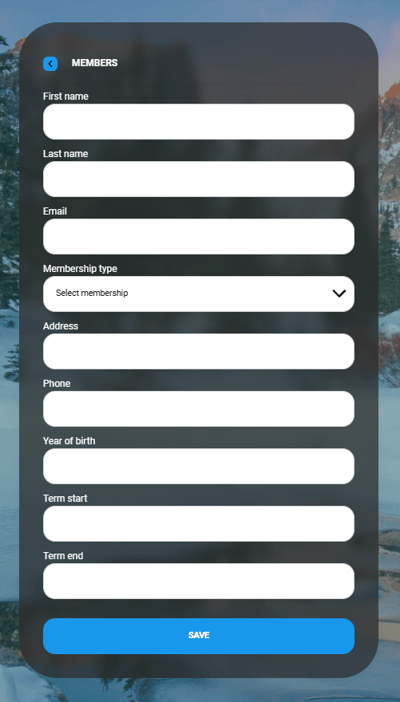
This user will then appear as a new member for your club and a voucher will be generated.
Manage Membership Types
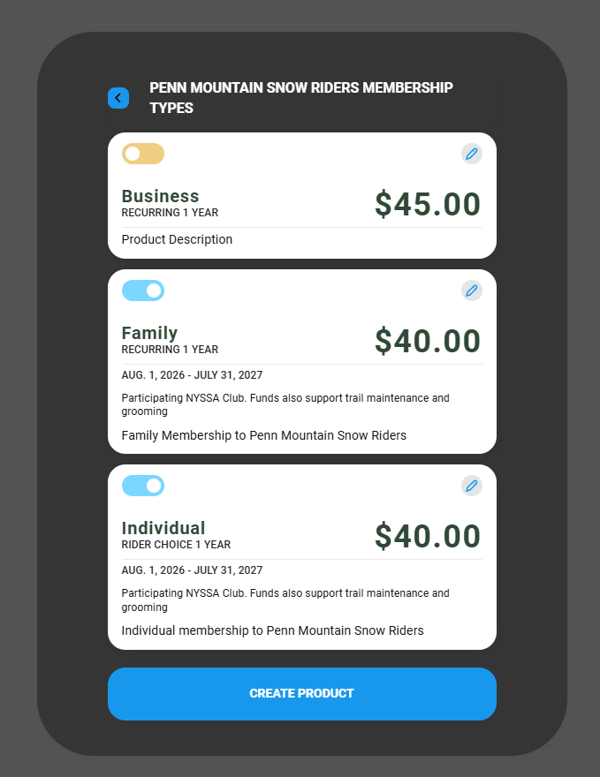
Here, you can manage the membership types that are available for users who would like to join your club. Any disabled membership types (like Business in this photo) will be able to be assigned by a club admin when entering an offline membership, but will not be available for users who join your club.
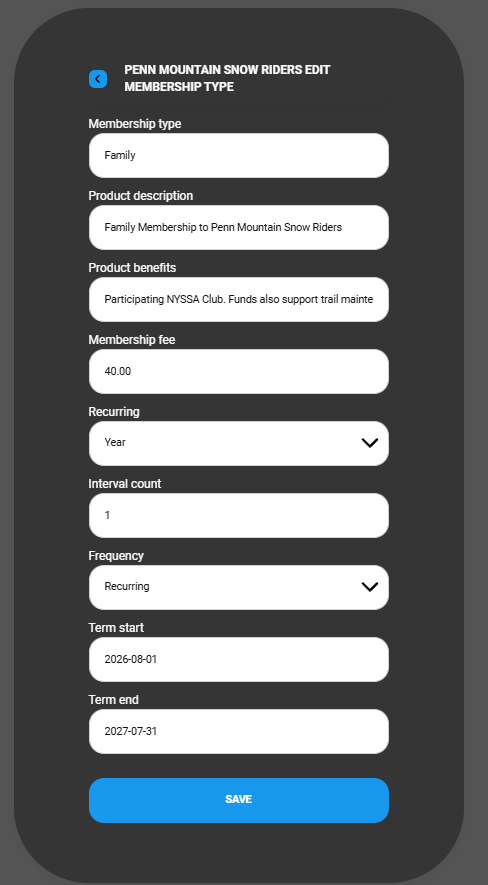
You can change:
- Membership type (name)
- Description
- Benefits
- Membership fee
- Recurring - most clubs pick year, and an interval of 1
- Frequency - you can pick one-time, recurring, or rider choice. Most clubs opt for rider choice to allow users to auto-renew if they'd like to.
- Term start and end date - when the subscription is valid
Manage Extra Questions
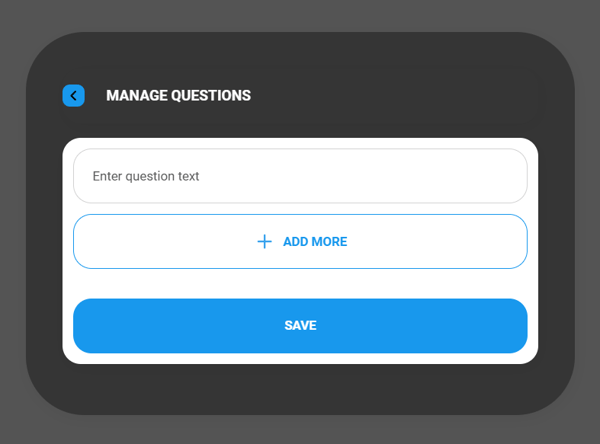
This allows you to add extra custom questions to your membership application. This question allows a blank text field response. Responses will be visible in the information in Manage Members. We see clubs use this for things like gauging volunteer interest and availability or asking if you want to receive mailings.