.png?width=800&height=160&name=Untitled%20(4).png)
This process consists of two steps: creating the route and saving to your TrailIntel account, and transferring the route to your Garmin.
The first step can either be completed on your computer through the TrailIntel web app (click here for detailed instructions) or in the mobile app on your smartphone or tablet (click here for detailed instructions).
Once you have created the route or routes and added them to your favorites, you can connect your Garmin to your computer and launch the TrailIntel map installer.
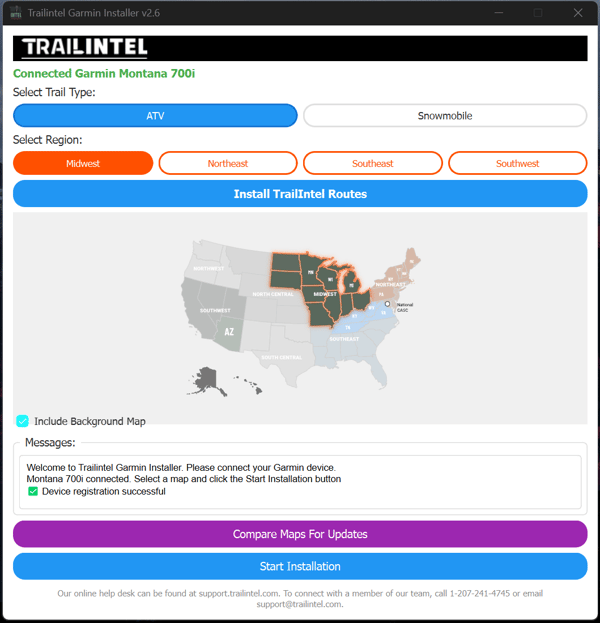
First, you should compare your maps for updates to be sure you have the most recent version on your device. You need to be sure the map version on your device matches the map version you built the route on - which is constantly updated on web and mobile. Comparing your Garmin maps before you install the routes ensures you're up to date.
This comparison feature is not available on all models yet. If you don't see this option and want to be sure your maps are up to date, you can simply install a fresh copy from the program. It will overwrite the existing map file on your device.
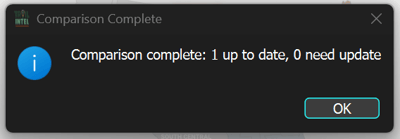
In this example, we are good to go!
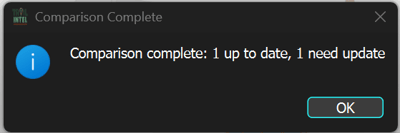
In this example, we need an update! Click "OK".
If you scroll up a few lines in the message logs, you will see which maps need to be updated. Select that map set, then click "Start Installation".
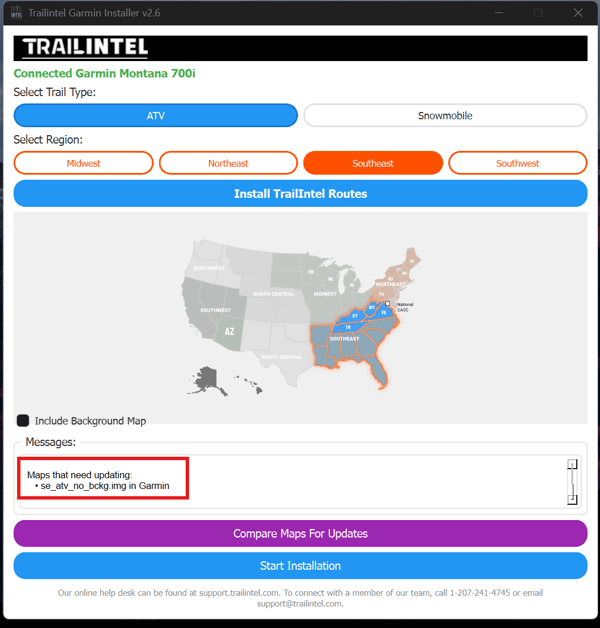
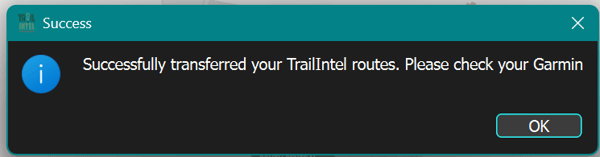
Once you have verified your maps are up to date, click "Install TrailIntel Routes". The installer will run, and you will get a pop-up when it's done.

On many Garmin models, you will get a pop-up when you restart the unit saying: "A GPS file was found. Import now?" - click "Yes" to begin the process. On some models, the routes will automatically be available in the Route Planner app in the device.
This process does not transfer favorite or custom waypoints yet - but it is in the works. All of our preloaded food, fuel, parking, etc points of interest are attached to the trail map file and will transfer to the device with your trails. Custom waypoints can be created on most Garmin models on the GPS unit itself. If you have any questions, please reach out to us at support@trailintel.com