.png?width=800&height=160&name=Untitled%20(4).png)
First, plan a route in the web or mobile app and save it to your favorites. Any waypoints you save to your favorites can be transferred this way as well.
Then, connect your Tread to the computer and launch the TrailIntel map installer. Once your Tread is recognized, click "Install Favorite Routes". You can find more directions on this process here: How do I send routes to my Garmin GPS?
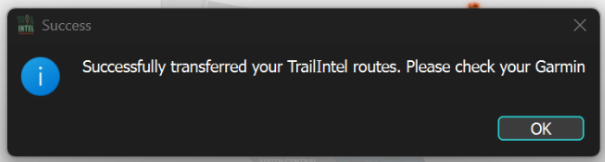
Once you receive this success message, you can disconnect your Tread from the computer and restart the device. If you do not restart, the new map, route, and waypoint data will not appear on the device.
On the Tread, go into the Apps and select Route Planner.
Click the 3 dots in the top right corner, then click Import.
You will see the files available for import listed on the screen. There will one for Favorite Routes and one for Favorite Waypoints. Select the file(s) you want to import items from and click OK.
Then, you can select one, some, or all of the routes and waypoints from each of these files. Make your selection, then click Next.
You can choose to add these routes and waypoints to a new or existing collection or leave them unorganized, then finally click "Import".
This route will now be available in your collections to view, edit, and launch!